How HuntScrape Works
From first login to end-of-season report — a complete walkthrough for club admins and members.
Create Your Club Account
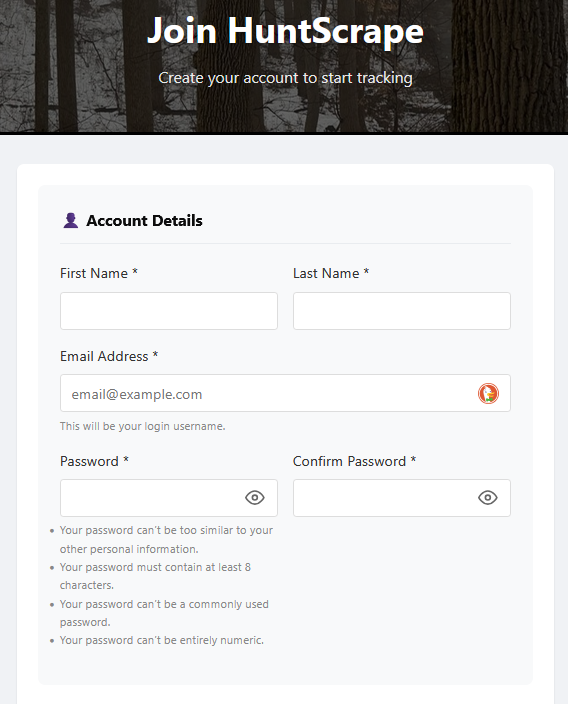
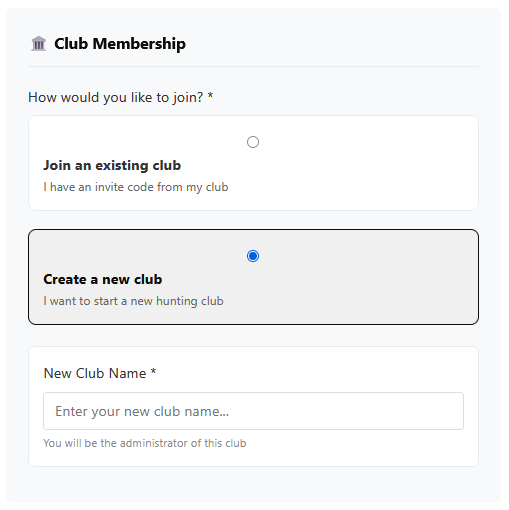
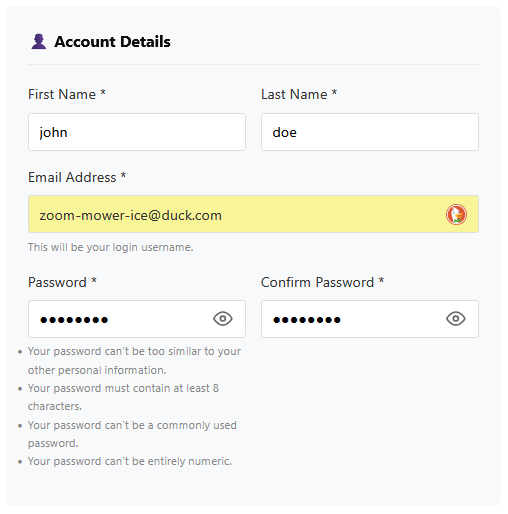
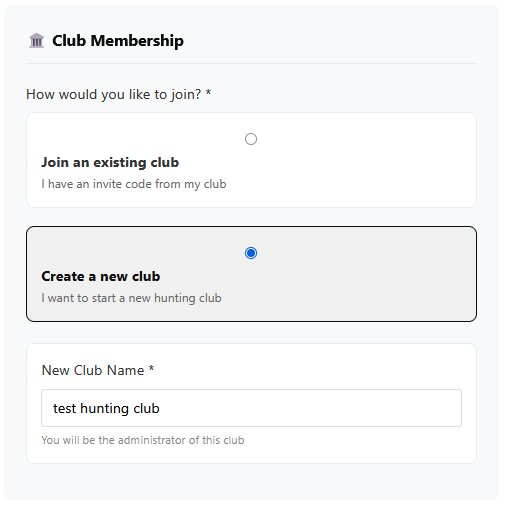
Getting started takes about two minutes. Head to the Sign Up page, enter your name and email, choose a password, and give your club a name. HuntScrape will create a private, isolated workspace for your club — no other club can see your data.
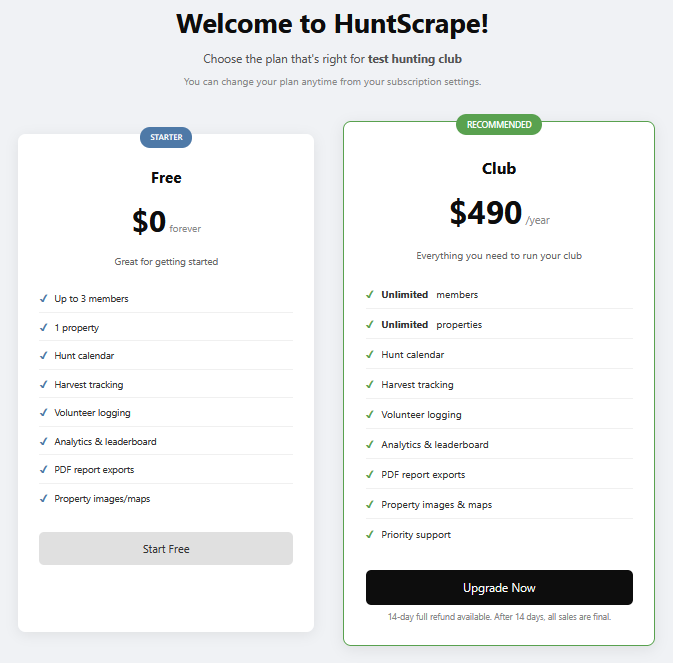
Your account starts on the Free plan — no credit card required. The free plan supports up to 3 members and 1 property, which is perfect for getting familiar with the system before you invite everyone.
 click to enlarge
 click to enlarge
 click to enlarge
 click to enlarge
 click to enlarge
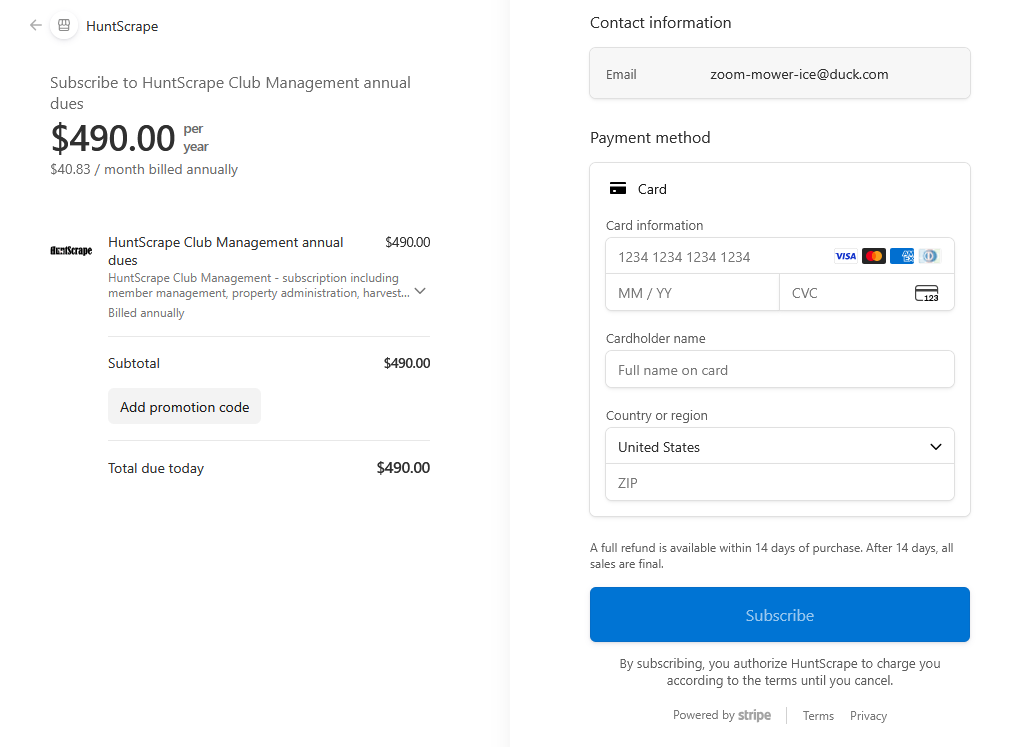
Clubs that need more than 3 members or more than 1 property must upgrade to the Club Plan. Upgrading is quick — payment is processed securely through Stripe, a trusted global payment platform used by millions of businesses. HuntScrape never stores your credit card information.
Admin vs. Member: The person who creates the account becomes the Club Admin. Admins can manage all settings, members, and data. Regular members can schedule hunts and log harvests, but cannot change club-wide settings.
Ready to go all-in? Upgrade to the Club Plan ($490/year) at any time for unlimited members, unlimited properties, and priority support.
Set Up Your Club Identity
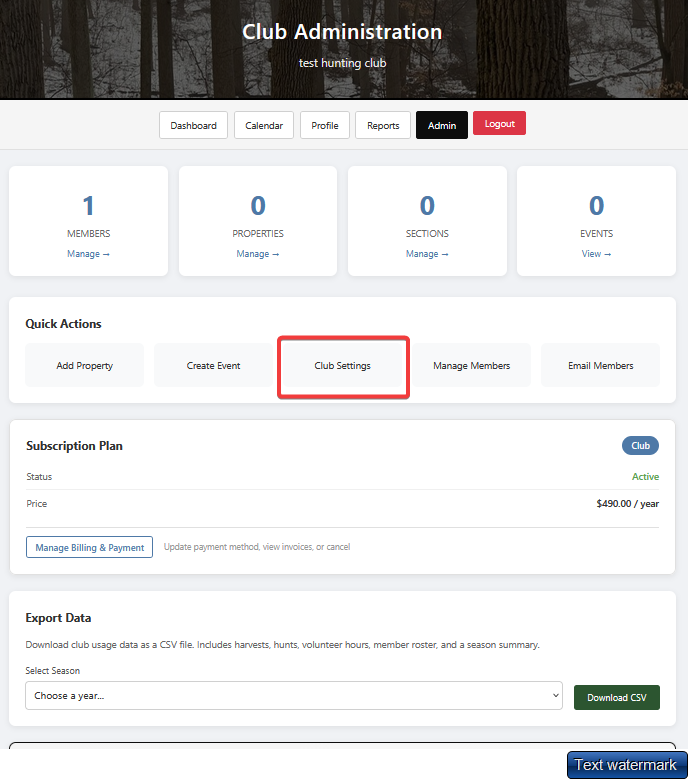
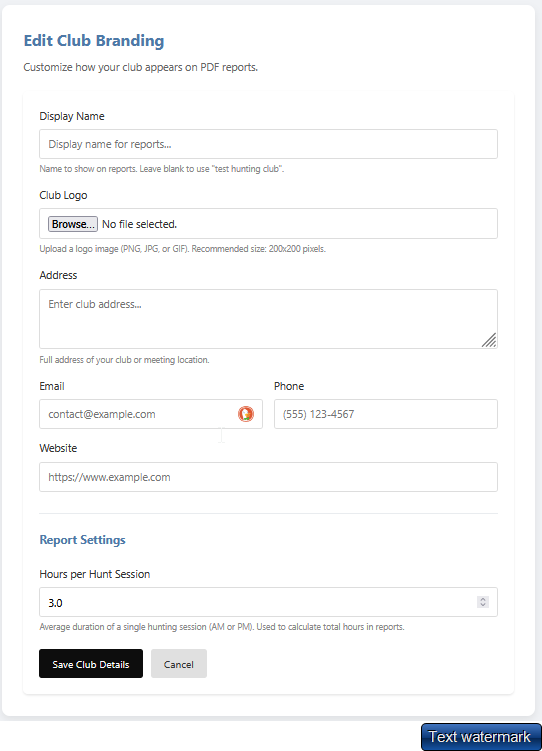
Under Club Settings, upload your club logo, set your club name as you want it displayed, and choose your active hunting season year. This branding appears on dashboards, member pages, and the PDF reports you share with property owners.
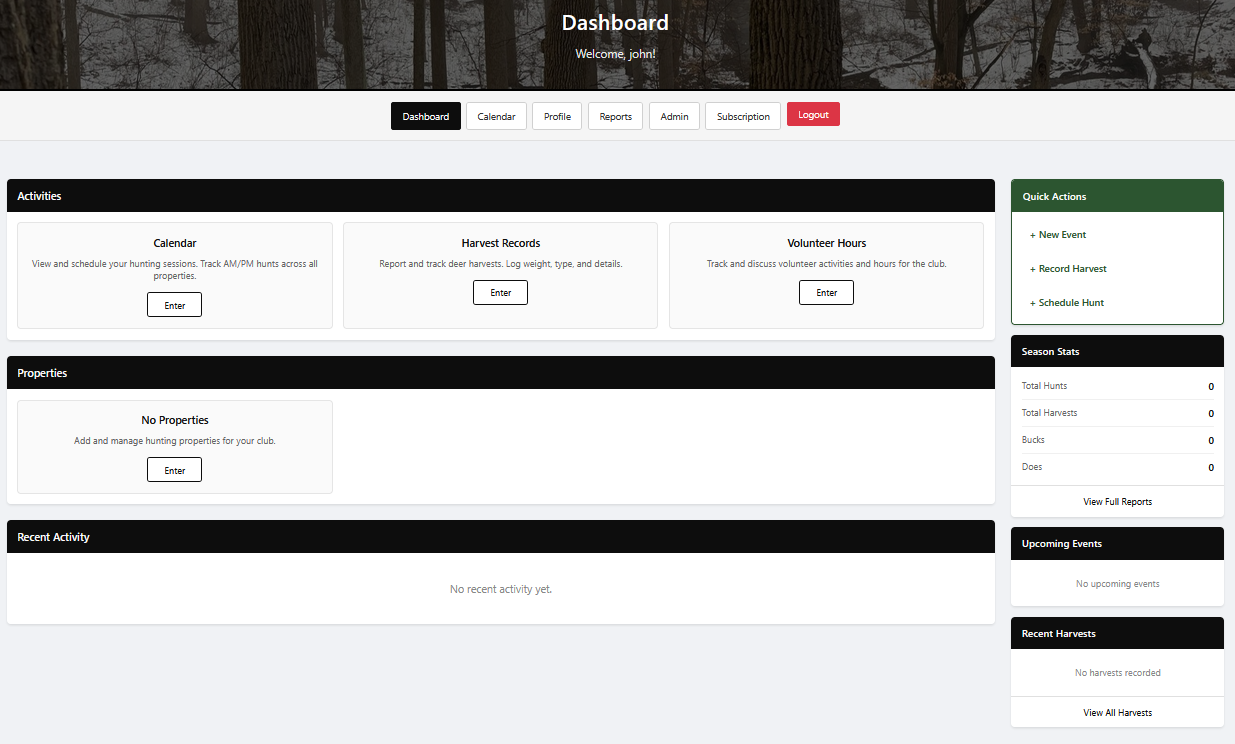
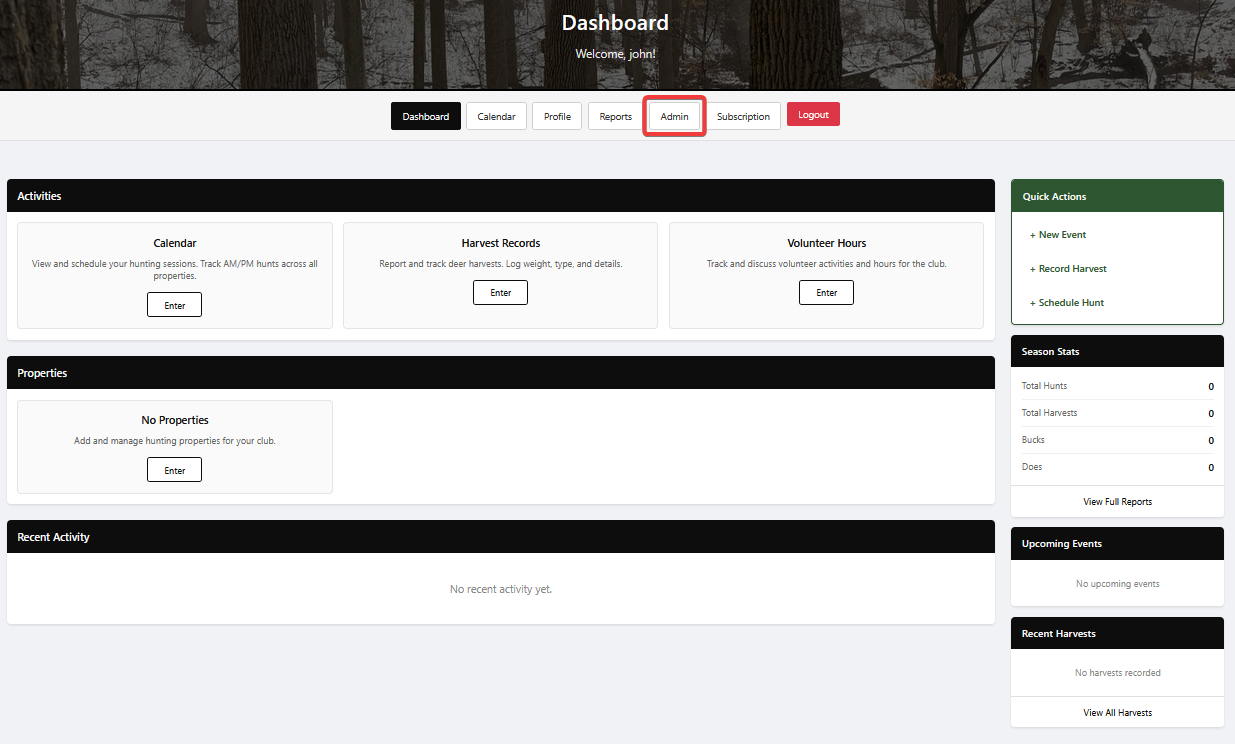
Once your club is created, you'll land on the main dashboard. From there, open the Admin section to continue setup.
 click to enlarge
 click to enlarge
From the Admin dashboard, open Club Settings to configure your branding, then edit club details. You can set the default hours per hunt session (how long an average AM or PM sit runs) and choose your active hunting season year.
 click to enlarge
 click to enlarge
Linking to your existing club website? HuntScrape is a stand-alone application — members log in directly at huntscrape.com using their own credentials. If your club already has a website, simply add a link on your site pointing members to your HuntScrape invite URL. There is no single-sign-on integration required; members maintain separate HuntScrape credentials.
Hunting Season Year: Because seasons span two calendar years (e.g., 2025–2026), HuntScrape lets you set the active year for your club. All hunt schedules, harvest records, and reports are filtered by this season so data stays clean year over year.
Invite Members
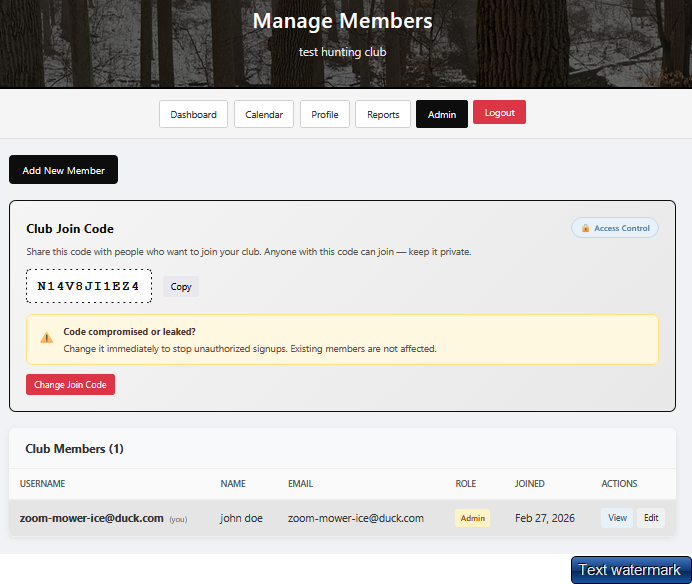
HuntScrape uses a simple invite code system. Every club gets a unique code that members enter when they sign up. No email lists to manage, no admin approval required — members join themselves.
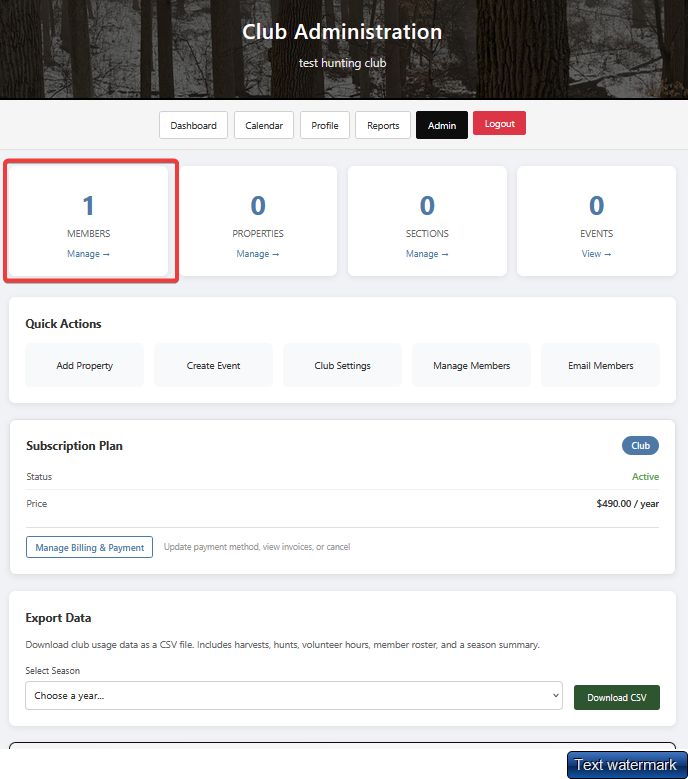
From the Club Admin page, open Member Management to get started.
 click to enlarge
 click to enlarge
How members join:
- Admin copies the invite code from the Manage → Members screen.
- Admin shares the code with members via text, email, or the club website.
- Members visit huntscrape.com/signup, create their own username and password, and enter the invite code.
- Their account is automatically linked to the club — they can log in immediately.
After joining, the admin can view all members, promote any member to Admin status, or remove members who are no longer in the club. Admins can also regenerate the invite code at any time to prevent unauthorized sign-ups.
Need to add a member manually? Admins can also add members directly from the Manage → Add Member form without needing the invite code flow.
Add Properties, Upload Maps & Create Sections
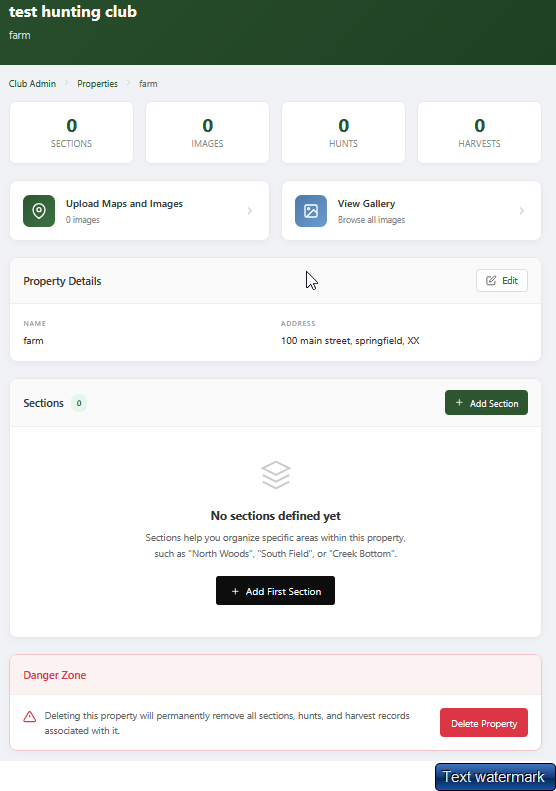
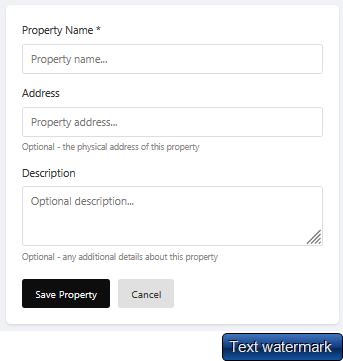
Properties are the hunting lands your club manages. Under Manage → Properties, add each parcel with a name and description. You can manage as many properties as your plan allows (1 on Free, unlimited on Club).
Use the quick-action button on the dashboard or open Manage Properties directly from the Admin panel — both options are highlighted in the interface.
 click to enlarge
 click to enlarge
Upload property maps and images. Each property has its own image gallery — upload aerial maps, topo images, boundary maps, or any photos relevant to that property. Images are stored securely and are visible to all club members in the Property Gallery.
Sections break a property into distinct hunting areas — a food plot, a river bottom stand, a ridgeline, etc. For each section you can configure:
- Section name & description
- Maximum hunters allowed at one time
- Notes visible to all members
- Stand/blind locations (descriptive)
- Access routes or parking notes
- Any rules specific to that section
Hunter limits per section are enforced when members schedule a hunt. If a section is at capacity for a given date and time, it shows as unavailable — preventing conflicts without any admin intervention needed.
Schedule Hunts
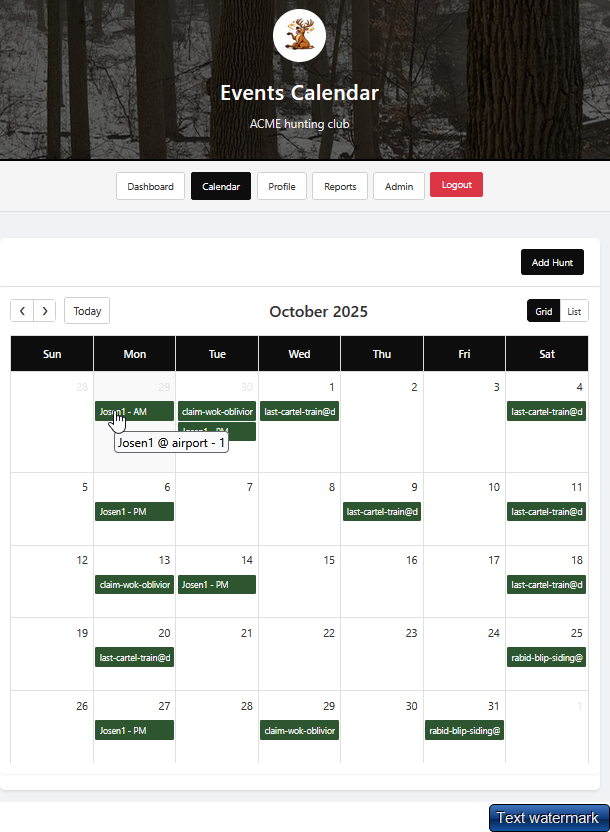
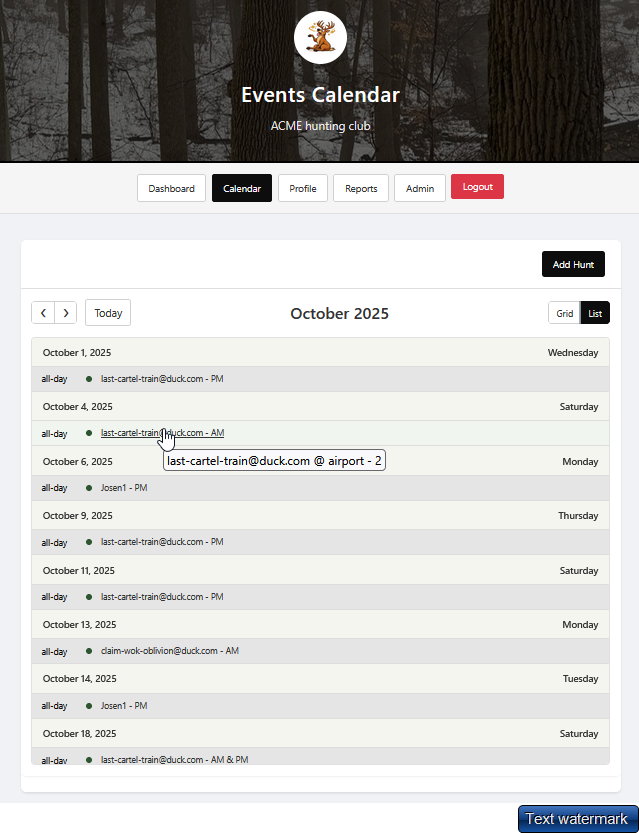
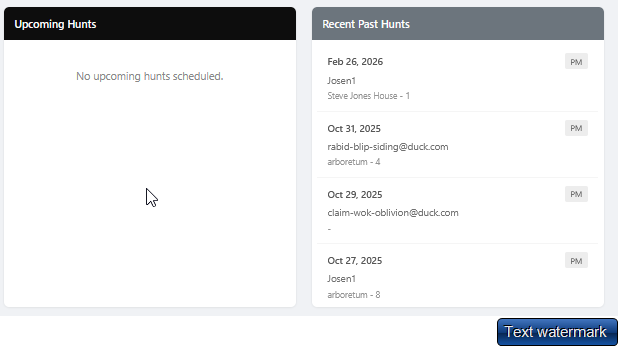
Members schedule their own hunts through the Hunt Calendar. They pick a date, choose a property and section, select AM or PM, and submit. The system checks section capacity before confirming — no double-booking, no spreadsheets.
The calendar defaults to a grid view but can also be switched to a list format. Below the calendar you'll see a live feed of recent and upcoming hunt activity.
 click to enlarge
 click to enlarge
 click to enlarge
Admins can view all upcoming hunts across all properties and members, edit any hunt, or delete it as needed. The calendar view gives a quick at-a-glance picture of who is hunting where on any given day.
- Calendar and list views
- Per-section capacity enforcement
- AM / PM hunt slots
- Admin override capability
- Hunt history retained by season
- Mobile-friendly booking
Log & Track Harvests
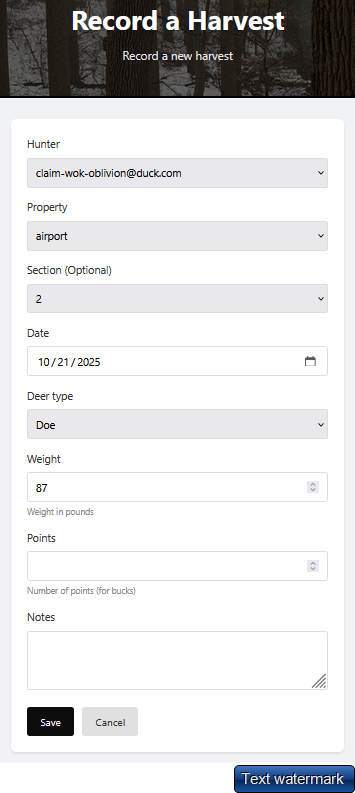
After a successful hunt, members log their harvest through the Harvests section. Details captured include the property and section, date, species, antler points, estimated weight, and any notes the hunter wants to add.
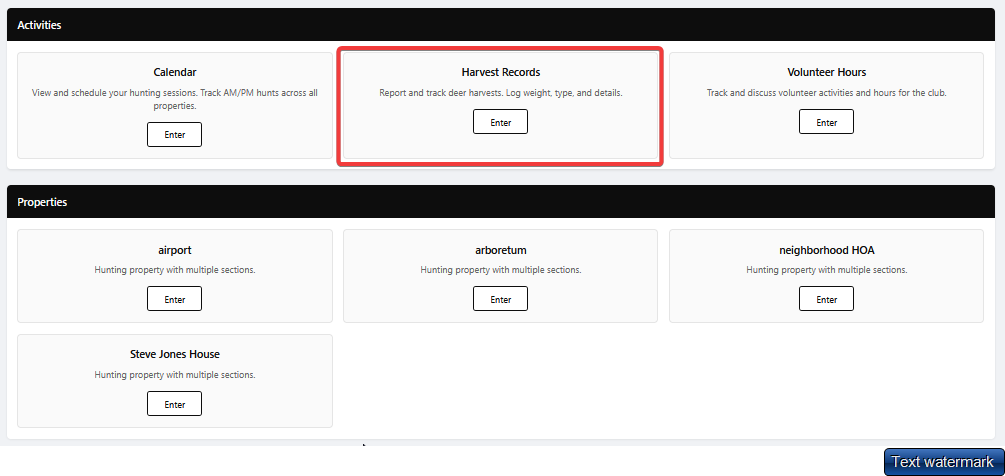
Everything is accessible from the dashboard. Hit the Harvest Records button, then choose Record Harvest at the top of the page to log a new entry.
 click to enlarge
 click to enlarge
The Analytics Dashboard aggregates all harvest data into charts and tables your club can actually use — totals by member, by property, by section, trends over multiple seasons, and a Leaderboard that adds a little friendly competition to the season.
- Harvest entry per member
- Property & section attribution
- Season-over-season comparisons
- Hunter leaderboard rankings
- Harvest detail records & edit history
- Export-ready data
Harvest data feeds directly into the professional PDF reports you send to property owners — so the more detail members log, the more impressive your end-of-season reporting looks.
Track Volunteer & Work Hours
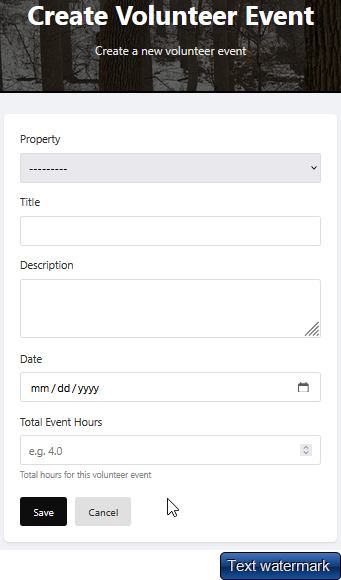
Most hunting clubs require members to contribute work hours — food plot maintenance, fence repair, stand installation, road work, and so on. The Volunteer Hours module lets admins create work events and members log their hours against those events.
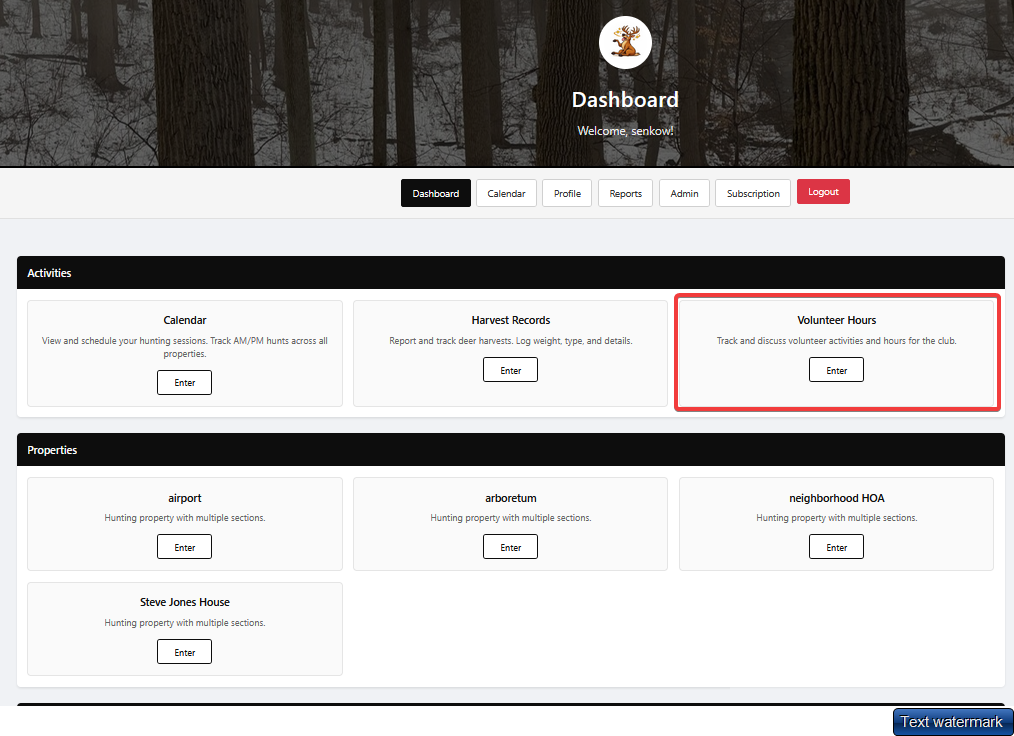
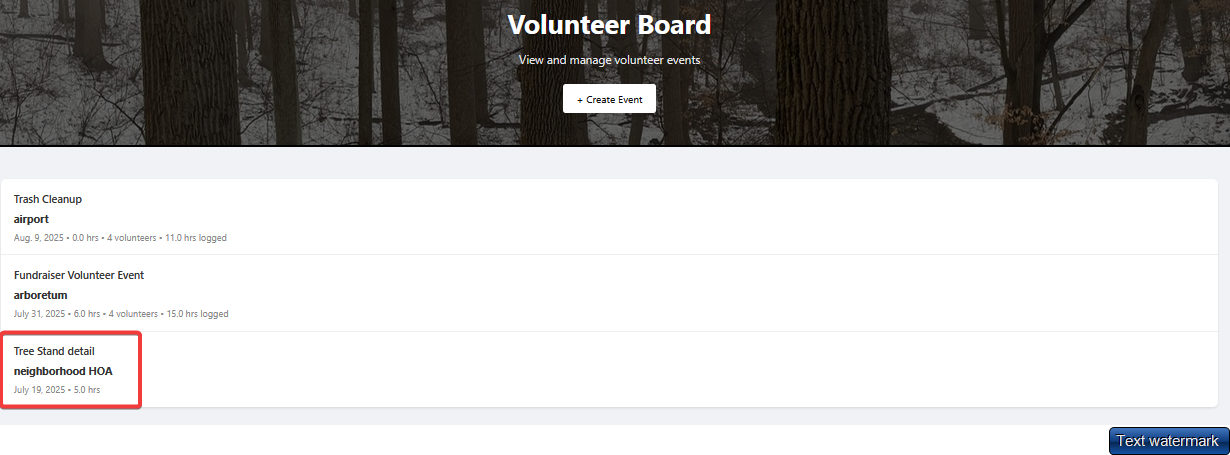
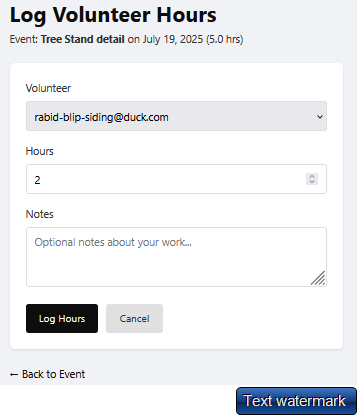
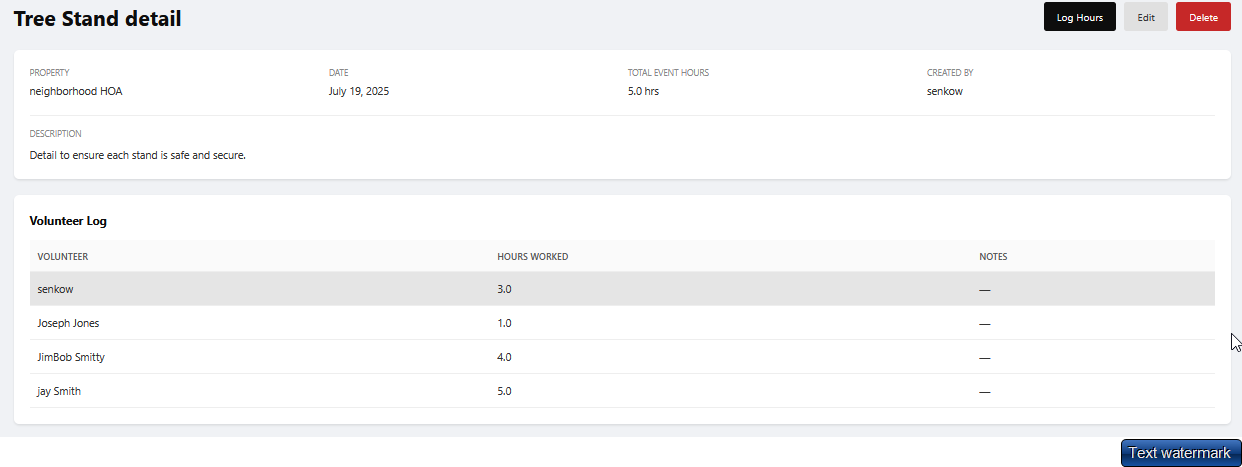
Access Volunteer Hours from the dashboard. When creating an event, be sure to set the total expected hours — this keeps reporting accurate. Once an event exists, members open it and click Log Hours to record their contribution.
 click to enlarge
 click to enlarge
 click to enlarge
 click to enlarge
 click to enlarge
Admins can see at a glance who has met their hour requirements and who still has hours to complete — no more chasing members down or maintaining separate spreadsheets.
- Create named work events
- Members self-log hours
- Per-member hour totals
- Admin view of all contributions
- Hours tracked by season
- Data included in reports
Generate Professional Reports
At the end of the season — or any time during it — generate a professional, print-ready PDF report for each property. Reports include harvest summaries, hunt activity statistics, member participation, and volunteer contributions. Hand these directly to your property owner, HOA board, corporate land manager, or conservation organization.
The Reports page is accessible from the dashboard. View summaries for all properties or drill into individual ones — and download a PDF with full control over which details to include.
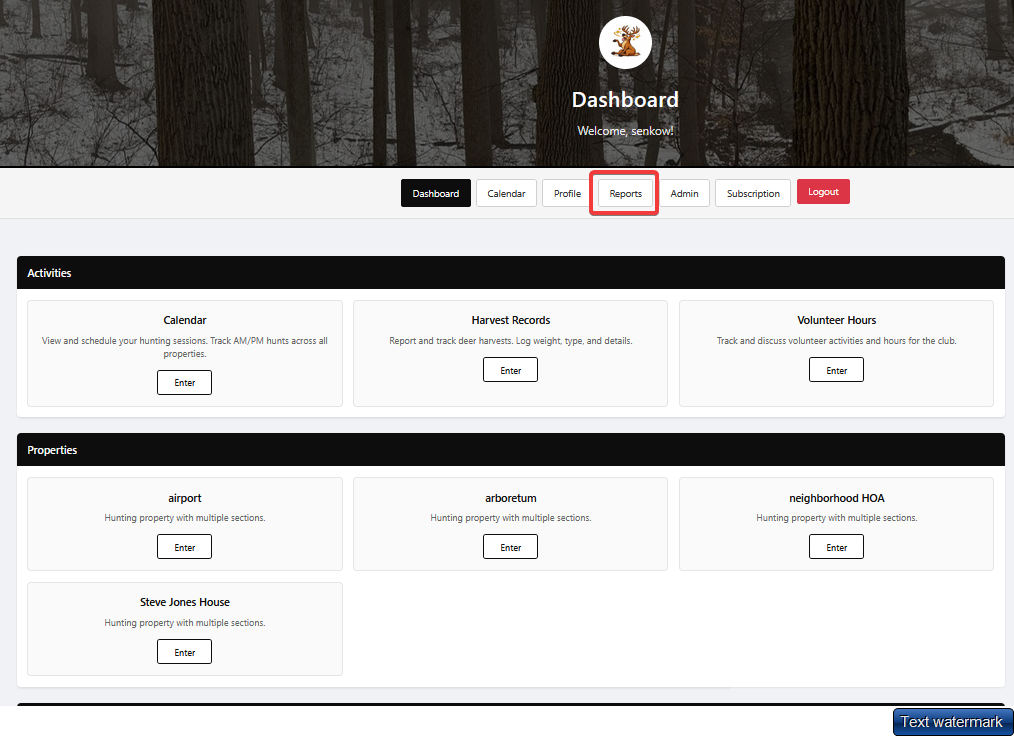 click to enlarge
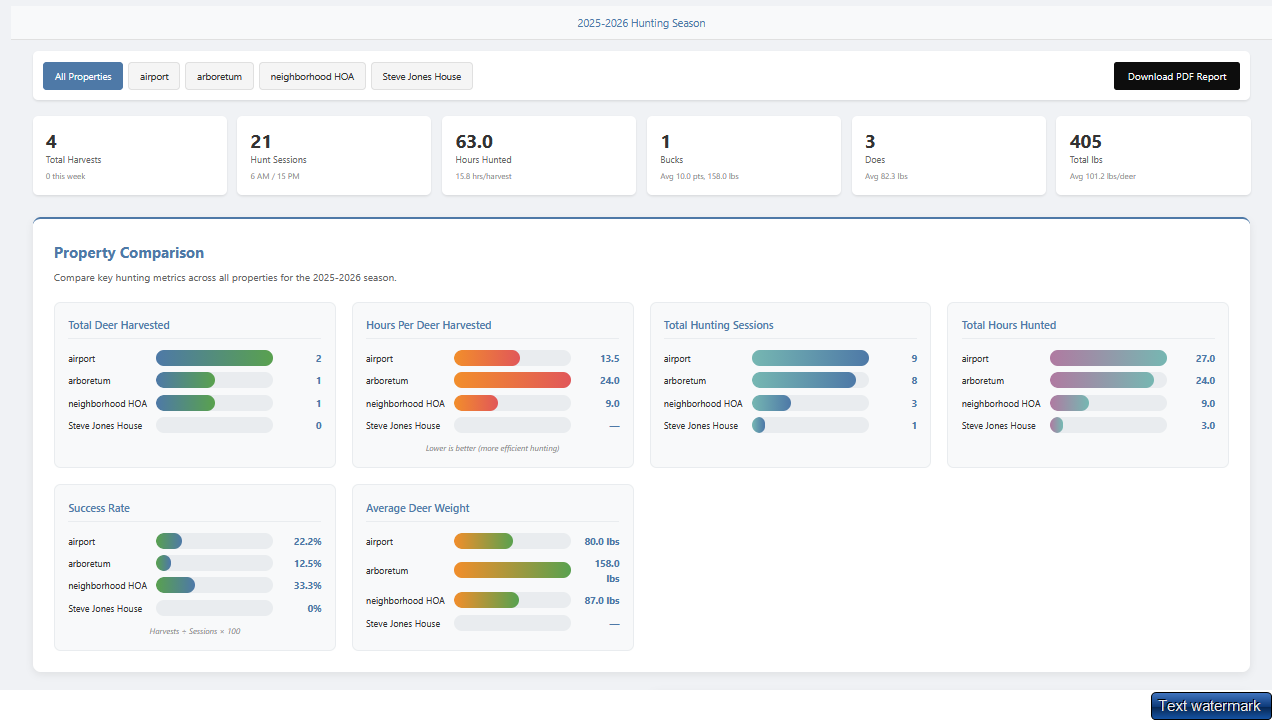 click to enlarge
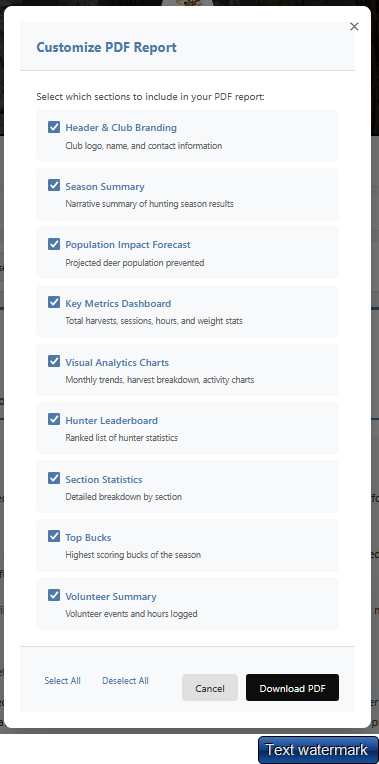 click to enlarge
This is one of HuntScrape's most valued features — clubs that hunt leased or permitted land often need to demonstrate responsible stewardship. A polished, data-backed report does that automatically, without any end-of-season scramble to pull numbers together.
- Per-property PDF reports
- Season harvest totals & breakdowns
- Hunt activity statistics
- Member & volunteer participation
- Club branding & logo on reports
- Download instantly, share by email
Data export: Admins can also export raw data to CSV for use in Excel or other tools if additional custom analysis is needed.
Hunt from Your Phone
HuntScrape is fully optimized for mobile — which means you can book a stand, log a harvest, or check who else is in the woods from anywhere, including the truck on the way to the property. No app store download required; just open your browser and go.
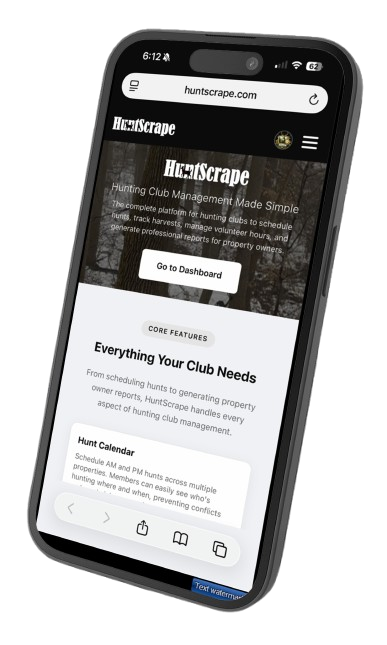
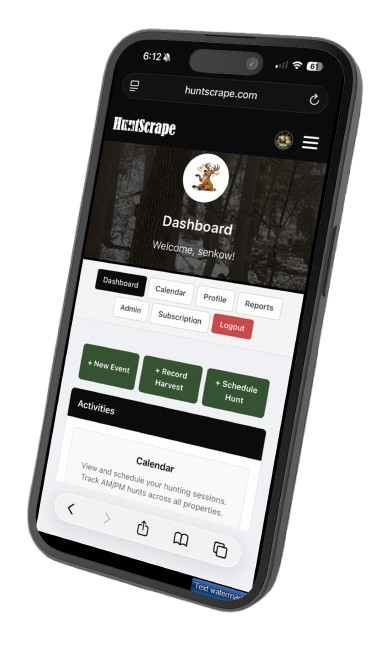
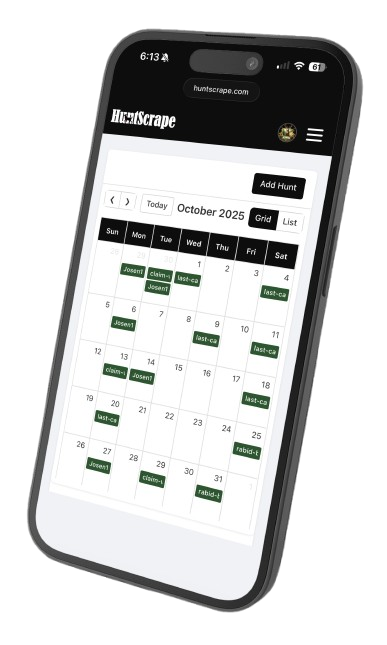
Key tasks members do from their phones every week during season:
- Book a morning or evening stand in under 30 seconds
- See who else has a section reserved for the same day
- Log a harvest immediately after the shot, while the details are fresh
- Check property maps and section notes before heading in
- View the hunter leaderboard standings
- Log volunteer hours from the work site
No app to install. HuntScrape runs in any modern mobile browser (Safari, Chrome, Firefox). Bookmark it on your home screen for one-tap access — it behaves like a native app without taking up storage on your phone.
Starting a New Hunting Season
When a new season arrives, the Club Admin simply updates the Active Hunting Season Year in Club Settings. That single change rolls the calendar forward — all new hunts, harvests, and volunteer logs are automatically recorded under the new season year, while everything from prior seasons stays intact and accessible for historical reporting.
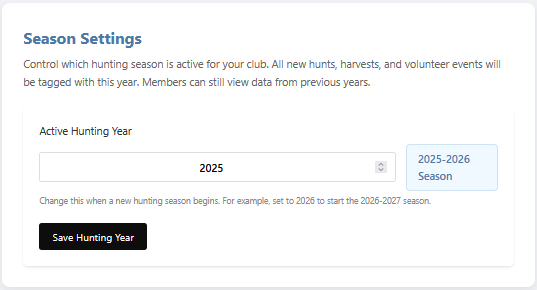
How HuntScrape handles season years: Because deer seasons span two calendar years (e.g., October 2025 through January 2026), we use a single year label — 2025 — to represent the full 2025–2026 season. When you advance to year 2026, all dashboards, hunt calendars, and reports switch to show only that season's data. Prior season data is always a click away via the year selector at the top of each page.
At rollover time, you don't need to delete old hunts, archive records, or reconfigure anything. Your members, properties, and sections carry forward automatically. The only things to think about at the start of each season:
- Advance the season year in Club Settings
- Review and update section hunter limits if needed
- Add any new properties or sections for the new season
- Remove or deactivate members who didn't renew
- Create volunteer work events for the new season
- Generate your prior-season report before flipping the year
Best practice: generate and save your end-of-season PDF report for each property before advancing the year — that way you have a clean snapshot on file to share with property owners.
What's Coming Next — Roadmap & Feature Requests
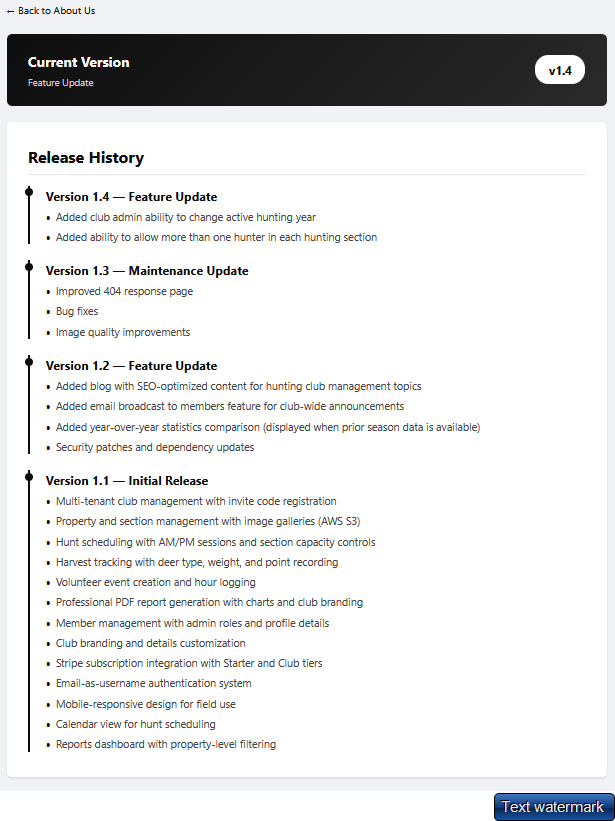
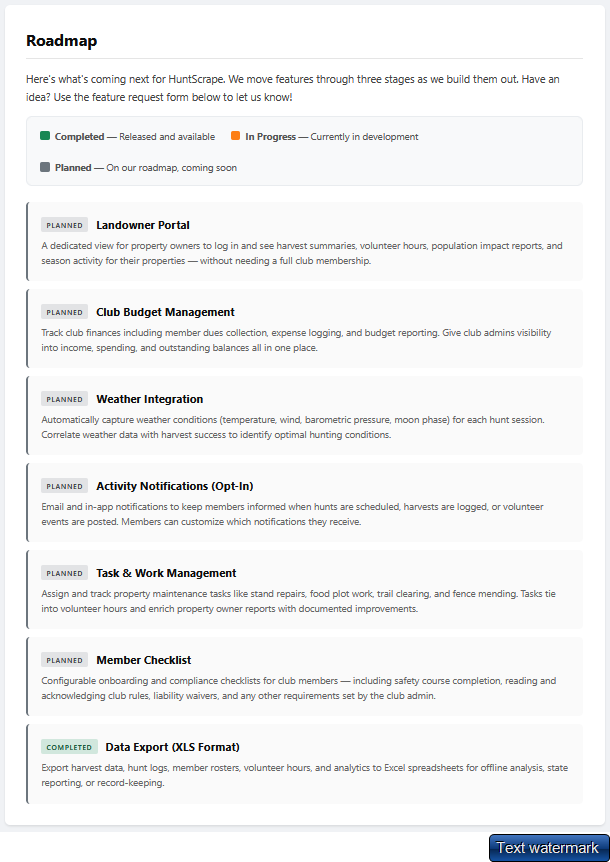
HuntScrape is actively developed and shaped by the clubs that use it. If there's something you wish the platform did, we want to hear about it. Our public roadmap shows what's been released, what's actively being built, and what's planned next.
 click to enlarge
 click to enlarge
On the Roadmap & Software Versions page you can:
- See the full release history and what changed in each version
- View features currently in development
- See what's on the planned backlog for upcoming releases
- Submit your own feature request directly from the page
- Vote for ideas other clubs have already suggested
- Get a sense of the platform's direction and maturity
Your feedback drives the roadmap. Every feature request goes directly to our development team. We track them, discuss them, and prioritize based on what the most clubs need. If multiple clubs ask for the same thing, it moves to the top of the list. Don't be shy — if it's a problem for your club, it's probably a problem for others too.
Ready to Put Your Club on HuntScrape?
Set up your free account in two minutes — no credit card required. Upgrade when you're ready.